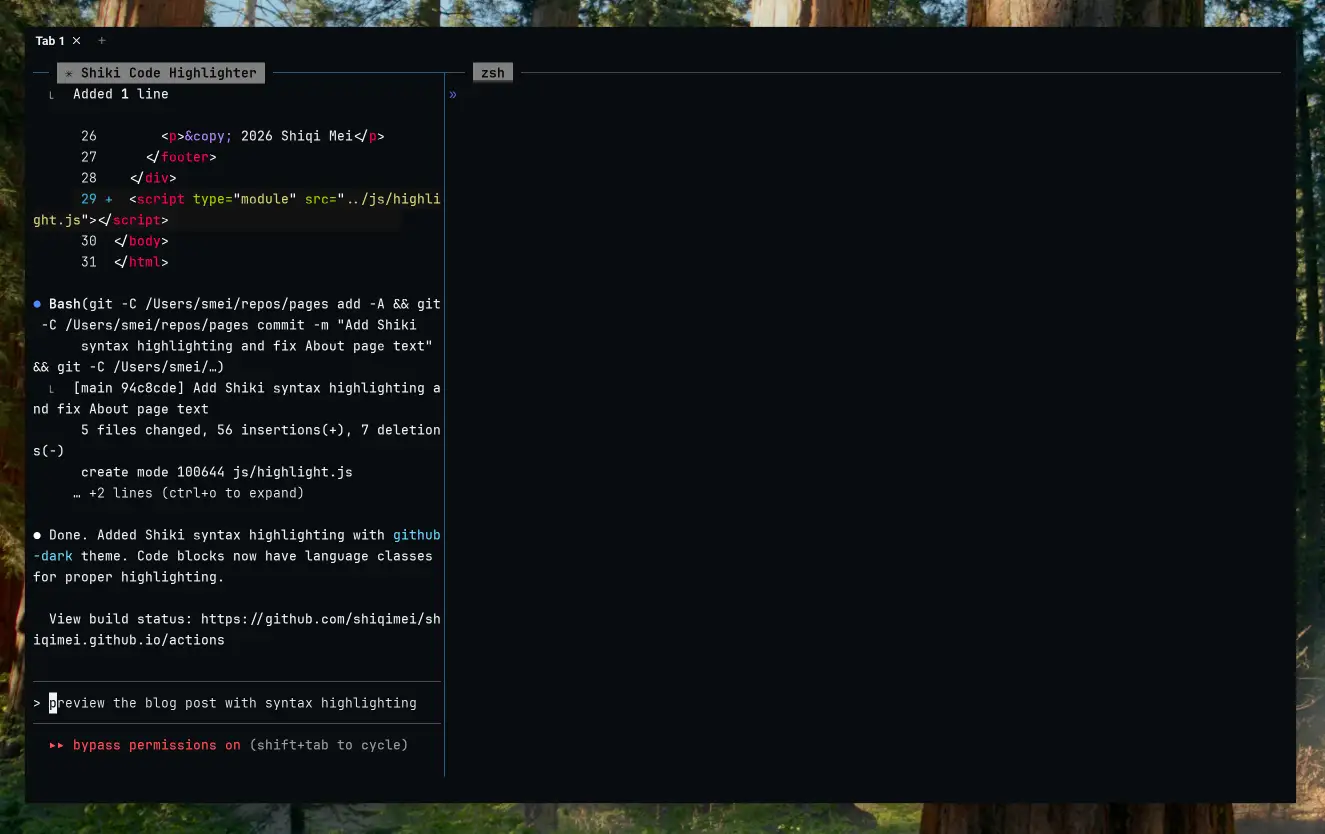
macOS has a distinctive look with its rounded window corners and subtle 1px window border. While aesthetically pleasing for most users, some prefer a sharper, more utilitarian appearance—especially when using terminal emulators like WezTerm with dark themes.
This guide documents the process of modifying macOS system assets to achieve square window corners and remove the window border.
Prerequisites
This modification requires disabling macOS security features. Proceed at your own risk.
- Boot into Recovery Mode (hold Power button on Apple Silicon, or Cmd+R on Intel)
- Open Terminal from Utilities menu
- Disable SIP:
csrutil disable - Disable Authenticated Root:
csrutil authenticated-root disable - Restart
Tools Required
- ThemeEngine - A tool for editing .car (compiled asset catalog) files. Download.
- ImageMagick - For batch editing images:
brew install imagemagick
Understanding the Asset Structure
Window appearance is controlled by assets in:
/System/Library/CoreServices/SystemAppearance.bundle/Contents/Resources/Aqua.carThe key assets for window corners are:
| Asset Name | Purpose |
|---|---|
WindowFrame_WindowShapeEdges_Regular |
Standard window corner shape (1x) |
WindowFrame_WindowShapeEdges_Regular@2x |
Retina window corner shape (2x) |
WindowFrame_WindowShapeEdges_Small |
Small window variant |
Extracting and Modifying Assets
Step 1: Backup the Original
cp /System/Library/CoreServices/SystemAppearance.bundle/Contents/Resources/Aqua.car ~/Downloads/Aqua.carStep 2: Open in ThemeEngine
Open ~/Downloads/Aqua.car in ThemeEngine and navigate to the WindowFrame_WindowShapeEdges assets.
Step 3: Export and Edit Images
Export each WindowShapeEdges image. The original images have:
- Transparent center (window content area)
- Semi-opaque corners (creating the rounded effect)
To create square corners, fill the entire image with the corner color. Using ImageMagick:
# For shape images (fill with corner color)
magick -size 54x54 xc:'graya(255,0.54902)' output.png

# For base images (make fully transparent)
magick -size 54x54 xc:'rgba(0,0,0,0)' output.png
Step 4: Import Back to ThemeEngine
Drag the edited PNGs back into ThemeEngine on their corresponding asset slots and save (Cmd+Shift+S).
Applying the Modified Assets
With SIP and Authenticated Root disabled:
# 1. Backup current system file
sudo cp /System/Library/CoreServices/SystemAppearance.bundle/Contents/Resources/Aqua.car ~/Documents/Aqua.car.backup

# 2. Find and mount the root disk
ROOT_DISK=$(df / | tail -1 | awk '{print $1}')
BASE_DISK=$(echo $ROOT_DISK | sed 's/s[0-9]*$//')
mkdir -p ~/live_disk_mnt
sudo mount -o nobrowse -t apfs $BASE_DISK ~/live_disk_mnt

# 3. Copy modified Aqua.car
sudo cp ~/Downloads/Aqua.car ~/live_disk_mnt/System/Library/CoreServices/SystemAppearance.bundle/Contents/Resources/Aqua.car

# 4. Create bootable snapshot
sudo bless --mount ~/live_disk_mnt --bootefi --create-snapshot

# 5. Restart
sudo shutdown -r now
Reverting Changes
To restore the original appearance:
# Copy backup back
sudo cp ~/Documents/Aqua.car.backup ~/live_disk_mnt/System/Library/CoreServices/SystemAppearance.bundle/Contents/Resources/Aqua.car

# Re-bless and restart
sudo bless --mount ~/live_disk_mnt --bootefi --create-snapshot
sudo shutdown -r now
Or re-enable SIP and Authenticated Root in Recovery Mode to restore system integrity.
Alternative: JankyBorders
For a less invasive approach, JankyBorders can add custom window borders (but cannot remove the native border):
brew install FelixKratz/formulae/borders
borders style=square active_color=0xff000000 width=2.0
References
macOS 以其圆角窗口和微妙的 1px 窗口边框著称。虽然对大多数用户来说这很美观,但有些人更喜欢更锐利、更实用的外观——尤其是在使用 WezTerm 等深色主题终端模拟器时。
本指南记录了修改 macOS 系统资源以实现方角窗口和移除窗口边框的过程。
前提条件
此修改需要禁用 macOS 安全功能。风险自负。
- 启动进入恢复模式(Apple Silicon 按住电源键,Intel 按 Cmd+R)
- 从实用工具菜单打开终端
- 禁用 SIP:
csrutil disable - 禁用 Authenticated Root:
csrutil authenticated-root disable - 重启
所需工具
- ThemeEngine - 用于编辑 .car(编译资源目录)文件的工具。下载。
- ImageMagick - 用于批量编辑图片:
brew install imagemagick
理解资源结构
窗口外观由以下位置的资源控制:
/System/Library/CoreServices/SystemAppearance.bundle/Contents/Resources/Aqua.car窗口圆角相关的关键资源:
| 资源名称 | 用途 |
|---|---|
WindowFrame_WindowShapeEdges_Regular |
标准窗口圆角形状 (1x) |
WindowFrame_WindowShapeEdges_Regular@2x |
Retina 窗口圆角形状 (2x) |
WindowFrame_WindowShapeEdges_Small |
小窗口变体 |
提取和修改资源
步骤 1:备份原始文件
cp /System/Library/CoreServices/SystemAppearance.bundle/Contents/Resources/Aqua.car ~/Downloads/Aqua.car步骤 2:在 ThemeEngine 中打开
在 ThemeEngine 中打开 ~/Downloads/Aqua.car,找到 WindowFrame_WindowShapeEdges 资源。
步骤 3:导出并编辑图片
导出每个 WindowShapeEdges 图片。原始图片包含:
- 透明的中心区域(窗口内容区)
- 半透明的角落(产生圆角效果)
要创建方角,用角落颜色填充整个图片。使用 ImageMagick:
# 形状图片(用角落颜色填充)
magick -size 54x54 xc:'graya(255,0.54902)' output.png

# 基础图片(完全透明)
magick -size 54x54 xc:'rgba(0,0,0,0)' output.png
步骤 4:导入回 ThemeEngine
将编辑后的 PNG 拖回 ThemeEngine 对应的资源槽位,保存(Cmd+Shift+S)。
应用修改后的资源
在禁用 SIP 和 Authenticated Root 的情况下:
# 1. 备份当前系统文件
sudo cp /System/Library/CoreServices/SystemAppearance.bundle/Contents/Resources/Aqua.car ~/Documents/Aqua.car.backup

# 2. 查找并挂载根磁盘
ROOT_DISK=$(df / | tail -1 | awk '{print $1}')
BASE_DISK=$(echo $ROOT_DISK | sed 's/s[0-9]*$//')
mkdir -p ~/live_disk_mnt
sudo mount -o nobrowse -t apfs $BASE_DISK ~/live_disk_mnt

# 3. 复制修改后的 Aqua.car
sudo cp ~/Downloads/Aqua.car ~/live_disk_mnt/System/Library/CoreServices/SystemAppearance.bundle/Contents/Resources/Aqua.car

# 4. 创建可启动快照
sudo bless --mount ~/live_disk_mnt --bootefi --create-snapshot

# 5. 重启
sudo shutdown -r now
还原修改
要恢复原始外观:
# 复制备份
sudo cp ~/Documents/Aqua.car.backup ~/live_disk_mnt/System/Library/CoreServices/SystemAppearance.bundle/Contents/Resources/Aqua.car

# 重新 bless 并重启
sudo bless --mount ~/live_disk_mnt --bootefi --create-snapshot
sudo shutdown -r now
或者在恢复模式中重新启用 SIP 和 Authenticated Root 来恢复系统完整性。
替代方案:JankyBorders
如果想要侵入性更小的方法,JankyBorders 可以添加自定义窗口边框(但无法移除原生边框):
brew install FelixKratz/formulae/borders
borders style=square active_color=0xff000000 width=2.0