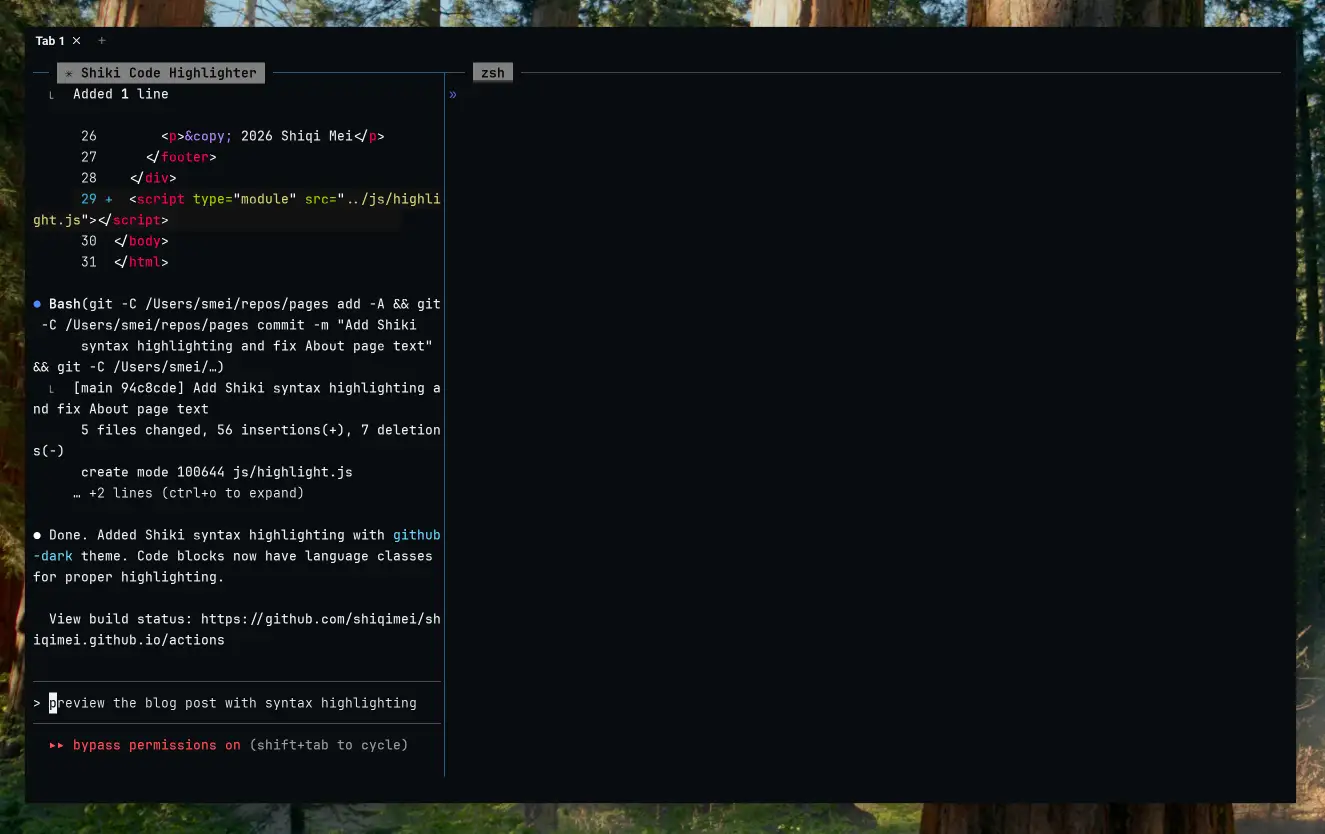
macOS has a distinctive look with its rounded window corners and subtle 1px window border. While aesthetically pleasing for most users, some prefer a sharper, more utilitarian appearance—especially when using terminal emulators like WezTerm with dark themes.
This guide documents the process of modifying macOS system assets to achieve square window corners and remove the window border.
Prerequisites
This modification requires disabling macOS security features. Proceed at your own risk.
- Boot into Recovery Mode (hold Power button on Apple Silicon, or Cmd+R on Intel)
- Open Terminal from Utilities menu
- Disable SIP:
csrutil disable - Disable Authenticated Root:
csrutil authenticated-root disable - Restart
Tools Required
- ThemeEngine - A tool for editing .car (compiled asset catalog) files. Download.
- ImageMagick - For batch editing images:
brew install imagemagick
Understanding the Asset Structure
Window appearance is controlled by assets in:
/System/Library/CoreServices/SystemAppearance.bundle/Contents/Resources/Aqua.carThe key assets for window corners are:
| Asset Name | Purpose |
|---|---|
WindowFrame_WindowShapeEdges_Regular |
Standard window corner shape (1x) |
WindowFrame_WindowShapeEdges_Regular@2x |
Retina window corner shape (2x) |
WindowFrame_WindowShapeEdges_Small |
Small window variant |
Extracting and Modifying Assets
Step 1: Backup the Original
cp /System/Library/CoreServices/SystemAppearance.bundle/Contents/Resources/Aqua.car ~/Downloads/Aqua.carStep 2: Open in ThemeEngine
Open ~/Downloads/Aqua.car in ThemeEngine and navigate to the WindowFrame_WindowShapeEdges assets.
Step 3: Export and Edit Images
Export each WindowShapeEdges image. The original images have:
- Transparent center (window content area)
- Semi-opaque corners (creating the rounded effect)
To create square corners, fill the entire image with the corner color. Using ImageMagick:
# For shape images (fill with corner color)
magick -size 54x54 xc:'graya(255,0.54902)' output.png

# For base images (make fully transparent)
magick -size 54x54 xc:'rgba(0,0,0,0)' output.png
Step 4: Import Back to ThemeEngine
Drag the edited PNGs back into ThemeEngine on their corresponding asset slots and save (Cmd+Shift+S).
Applying the Modified Assets
With SIP and Authenticated Root disabled:
# 1. Backup current system file
sudo cp /System/Library/CoreServices/SystemAppearance.bundle/Contents/Resources/Aqua.car ~/Documents/Aqua.car.backup

# 2. Find and mount the root disk
ROOT_DISK=$(df / | tail -1 | awk '{print $1}')
BASE_DISK=$(echo $ROOT_DISK | sed 's/s[0-9]*$//')
mkdir -p ~/live_disk_mnt
sudo mount -o nobrowse -t apfs $BASE_DISK ~/live_disk_mnt

# 3. Copy modified Aqua.car
sudo cp ~/Downloads/Aqua.car ~/live_disk_mnt/System/Library/CoreServices/SystemAppearance.bundle/Contents/Resources/Aqua.car

# 4. Create bootable snapshot
sudo bless --mount ~/live_disk_mnt --bootefi --create-snapshot

# 5. Restart
sudo shutdown -r now
Reverting Changes
To restore the original appearance:
# Copy backup back
sudo cp ~/Documents/Aqua.car.backup ~/live_disk_mnt/System/Library/CoreServices/SystemAppearance.bundle/Contents/Resources/Aqua.car

# Re-bless and restart
sudo bless --mount ~/live_disk_mnt --bootefi --create-snapshot
sudo shutdown -r now
Or re-enable SIP and Authenticated Root in Recovery Mode to restore system integrity.
Alternative: JankyBorders
For a less invasive approach, JankyBorders can add custom window borders (but cannot remove the native border):
brew install FelixKratz/formulae/borders
borders style=square active_color=0xff000000 width=2.0